What Is Jira? A Getting-Started Guide for Teams in Your Organization (Updated Edition)
Jira is Atlassian software that teams use to plan, assign, and track work in one place. This guide updates the one we first published in 2020 to match Jira on Atlassian Cloud today, including the newer terms space and work item, boards, workflows, Automation, Rovo, and plans. It closes with steps your team can follow right away.
What is Jira?
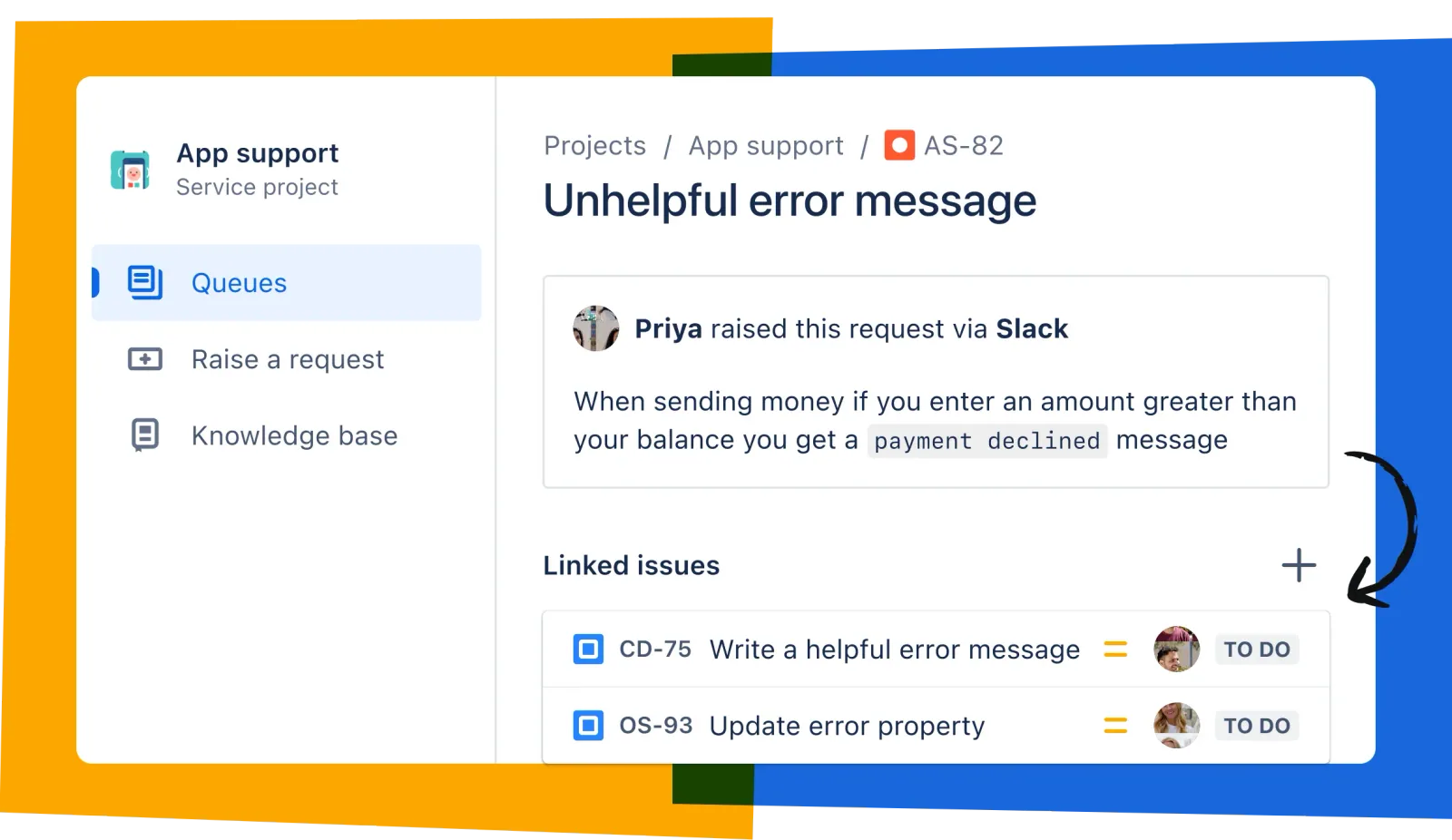
Jira keeps every piece of the team's work as an item with an owner, a status, a priority, and a due date. Everyone sees the same information, so team leads know right away which work is moving, which is stuck, and who it is stuck with, without chasing people over email or chat.
Many people know Jira as a tool for software development teams, and Atlassian used to split Jira into several products by team type. Today it is one product, Jira, so every team can use the same system and pick the template that fits how they work. Here are examples of how teams in an organization use Jira:
- Software development teams: plan sprints, track bugs, and prepare releases
- Project management offices (PMOs): follow the progress of several projects at once
- Marketing and operations teams: manage campaign work, content production, and work that needs approval
- IT: track project work such as system changes or equipment rollouts. Handling issue reports from employees is a better fit for Jira Service Management
Today Jira runs on Atlassian Cloud and is part of the Teamwork Collection alongside Confluence, Loom, and Rovo. Your team can write plans and documents in Confluence, record videos that explain the work with Loom, and link everything back to the work in Jira.
Atlassian has set Data Center's end of life for March 28, 2029. After that date the system can only be opened in read-only mode, with no more updates or support. If your organization still uses Jira Data Center, start planning your move to Cloud now. We've gathered the steps in our Cloud migration checklist article.
Core concepts: space, work item, and status
Before you start configuring, get familiar with a few key terms, because every menu in Jira refers to them. In 2025, Atlassian also renamed some terms on the Jira Cloud screens.
Older guides, including our first article, use the words project and issue. Jira Cloud screens now say space and work item respectively. The meaning is the same. JQL and the API still use project and issue so they keep working with existing filters and integrations.
Space (formerly called project)
A space is the workspace for one team or project. Inside it are its own work items, boards, workflows, and permission settings. Most organizations create one space per team, or one per ongoing project. A Jira space and a Confluence space are different things, so if your team uses both products, be clear about which one you mean.
There are two types of space. A team-managed space lets the team configure things themselves, quickly and easily, which suits teams just getting started. A company-managed space lets administrators define workflows, fields, and permissions centrally and reuse them across many spaces, which suits organizations that want every team to work the same way. In a company-managed space, only administrators can edit the workflow.
Work item (formerly called issue)
A work item is one piece of work, such as a task to do, a bug to fix, or a request to approve. Each has its own type: an Epic for a large body of work that breaks into smaller pieces, a Task or Story for work that can be finished in a few days, and a Subtask for a step within a piece of work. This hierarchy lets team leads see the big picture at the Epic level while people doing the work see the details at the Task level.
Status
Status tells you where a work item stands. Every status belongs to one of three categories: To Do, In Progress, or Done. Each team can name its own statuses, such as Waiting for review or Waiting for approval, but Jira still knows which category each belongs to, so it can show progress accurately.
Boards, workflows, and fields
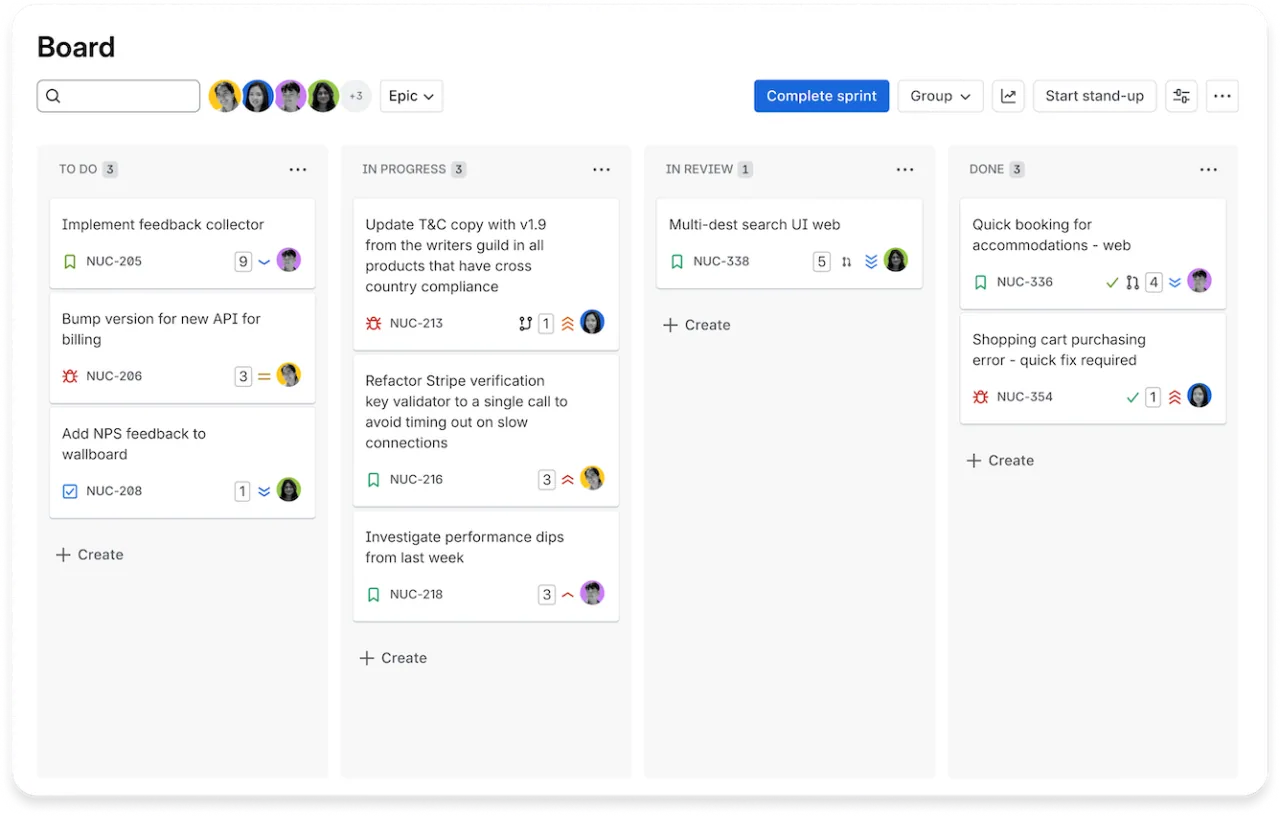
A board shows work items as cards arranged in columns by status. The team moves cards from left to right as work progresses. Each column is tied to a status in the workflow, and Jira treats the rightmost column as finished work.
Scrum or Kanban
- Scrum: the team works in short cycles called sprints. Before each cycle, the team picks work from the backlog and reviews the results when the cycle ends. It suits software development teams and teams that deliver in cycles.
- Kanban: work flows in and out continuously with no fixed cycles. The team watches where work is piling up and limits how much it does at once. It suits teams with a steady stream of incoming work, such as operations or content production teams.
If you can't decide, ask whether your team plans its work ahead in cycles. If so, start with Scrum. If not, start with Kanban and adjust once you see how the team really works.
Workflow
A workflow is the set of statuses, transitions, and rules a work item passes through from creation to completion. A transition is a path from one status to another, and it goes one way only. If you want work to move backward, you need to create a separate transition for that. You can set rules on each transition, such as requiring an assignee before work starts or an approval before work is closed.
Field
A field is a piece of information stored on each work item, such as the summary, description, assignee, priority, and labels. Organizations can add custom fields for whatever else they need to track, such as the requesting department or a project code.
Teams that are just starting often add too many required statuses and fields, until people don't want to create work in the system. Use the template's default statuses at first, and add more only when there is a clear reason.
Automation and Rovo in Jira
Automation reduces the repetitive work your team does by hand. Each rule works as: when this happens, do that. It has three parts.
- Trigger: the event that starts the rule, such as a new work item being created or a work item changing status
- Condition: a requirement that must be true before the rule continues, such as the item being a high-priority Bug
- Action: what the system does for you, such as assigning an owner, changing a status, or sending a notification
You create rules in each space's settings, and in a team-managed space you can also add rules from the workflow editing page. Rules most teams can use in the first week include moving the parent item to Done when every Subtask is finished, assigning new Bugs to whoever looks after that area, and notifying the assignee when work is nearing its due date.
Rovo in Jira
Rovo is Atlassian's AI, available on Jira's Standard, Premium, and Enterprise plans. The Free plan does not include Rovo in Jira. There are three main ways to use Rovo.
- Search: find information across Jira, Confluence, and the apps your organization has connected, from a single search box
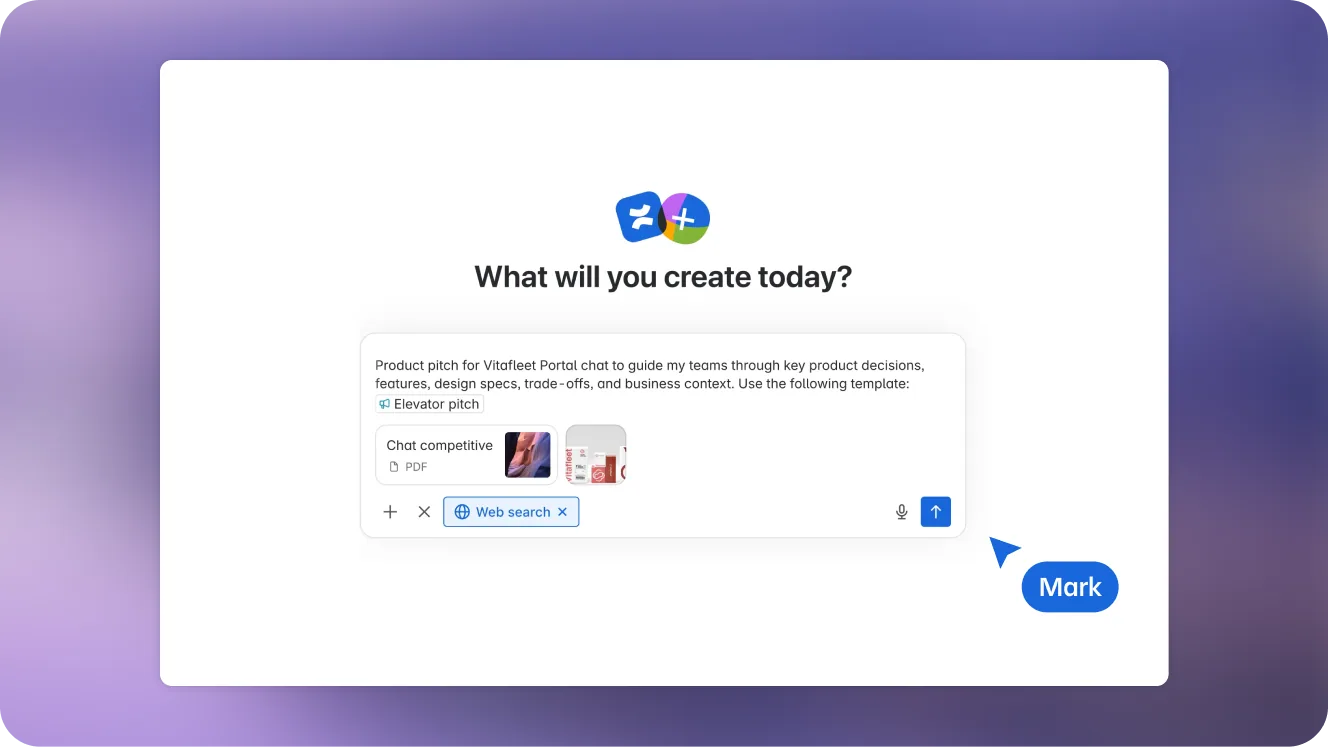
- Chat: ask questions in plain language and get answers based on the content in your organization's systems
- Agents: have an agent summarize a work item, draft work details, or triage incoming work
Rovo only shows information each user already has permission to see, so data doesn't leak across permissions. But if any space or Confluence page is shared too broadly, Rovo can find that content more easily too, so review permissions first. You can read more in our article Understanding Rovo.
Jira plans: Free, Standard, Premium, and Enterprise
Jira on Atlassian Cloud has four plans. They differ in user count, permission controls, planning tools, and level of support.
- Free: for up to 10 users. Suits small teams or trials, and does not include Rovo
- Standard: adds roles and finer-grained permissions, audit logs, and Rovo. Suits most teams in an organization
- Premium: adds planning tools that work across multiple spaces, plus a sandbox for testing configuration changes before they go live. Suits organizations that manage many teams or projects at once
- Enterprise: for large organizations that need a higher level of support and uptime commitments than Premium
If you're not sure, start with two questions: how many users do you have, and do you need to plan work across several teams? Teams that work fairly independently can start with Standard. Organizations whose PMO tracks several projects at once should also look at what Premium offers.
Getting started with Jira in your organization, step by step
Rolling out Jira to the whole organization at once often leads every team to configure it differently. We recommend starting with one pilot team and applying what you learn to the next team.
- Choose a pilot team: pick a team with ongoing work whose lead is ready to try a new way of working
- Create a space from a template: choose Scrum or Kanban to match how the team actually works
- Keep work types and statuses to a minimum: use the template defaults first, and add only what you need
- Invite members and set permissions: define who can create, edit, and view work, especially in spaces with confidential information
- Set up the board: check that the columns match the real steps of the work, and set up filters so each person sees their own work
- Add two or three Automation rules: start with the repetitive tasks the team complains about most
- Review after 2–4 weeks of use: ask the team which steps are slow and which fields nobody fills in, and adjust before expanding to other teams
Checklist before expanding to the next team
- The pilot team creates and updates work in Jira instead of assigning it over email or chat
- Team leads use Jira boards or reports in their progress meetings
- A short document explains the work types, statuses, and fields the team uses
- You've decided whether the next team will use a team-managed or company-managed space
- An administrator is responsible for central configuration and permissions
- You've reviewed permissions on the relevant spaces and Confluence pages before enabling Rovo for a large group of users
When to bring in a partner
A small team can start on Jira by itself, but once the system spreads across several teams, a configuration that wasn't planned from the start gets harder and harder to fix. These are the situations where expert help is worth having.
- Several teams need the same workflows, fields, and reports
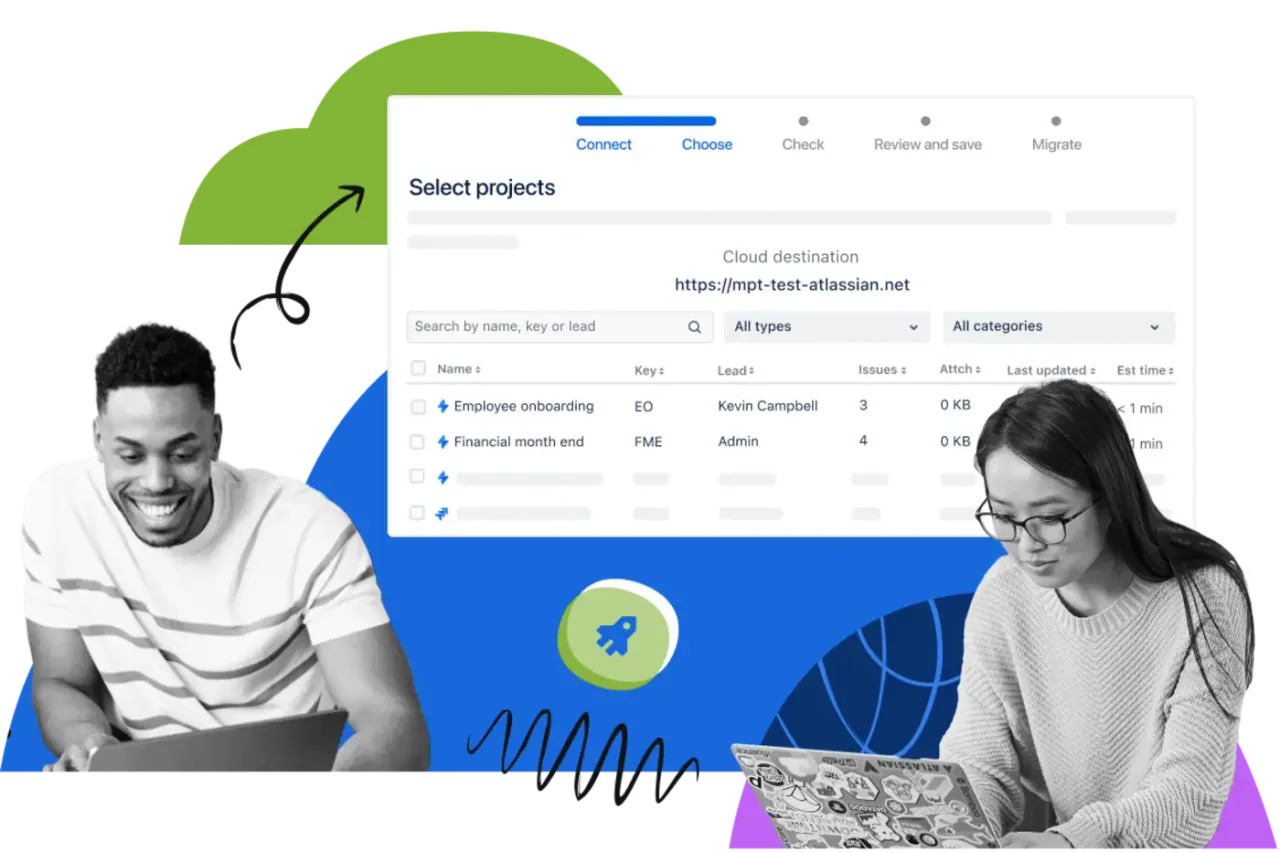
- You need to migrate data from Jira Data Center or another tool to Atlassian Cloud
- You need employees to sign in with the same account as Microsoft Entra ID or your organization's existing identity system, which requires Atlassian Guard
- You need to train several groups of users and administrators at the same time
Data Express helps with space and permission design, data migration, Automation setup, and team training, both on-site and online. Our team has experience providing consulting, training, installation, and customization of Jira for private-sector and public-sector organizations, and we are an Atlassian Gold Solution Partner.
If your team also needs to handle requests from employees, read our Jira Service Management guide. And if you're still on Data Center, see our Cloud migration checklist before you start planning.
Frequently asked questions
What is Jira, and what can you use it for?
Jira is Atlassian software for planning and tracking a team's work. Every piece of work has an owner, a status, and a due date. Software development teams, project teams, marketing teams, and operations teams can all use it, viewing work through boards, work lists, or reports.
How is Jira different from Trello and Confluence?
Jira tracks work that needs workflows, permissions, and reporting across multiple teams. Trello is a simple board that suits personal work or small teams. Confluence is for writing and storing documents such as plans, guides, and meeting notes. Many organizations use Jira together with Confluence and link work and documents to each other.
What's the difference between Jira Scrum and Kanban, and which should I choose?
Scrum divides work into short cycles called sprints, with the team planning before each cycle and reviewing when it ends. Kanban lets work flow continuously with no fixed cycles. If your team plans work ahead in cycles, start with Scrum. If work arrives all the time, start with Kanban.
Has Jira project been renamed to space? Is an issue now a work item?
Yes. In 2025, Atlassian renamed project to space and issue to work item on the Jira Cloud screens. The meaning and behavior are the same. JQL and the API still use project and issue so they keep working with existing setups.
How many people can use Jira for free, and how do the Standard, Premium, and Enterprise plans differ?
The Free plan supports up to 10 people and does not include Rovo. Standard adds finer-grained permissions, audit logs, and Rovo. Premium adds planning tools across multiple spaces and a sandbox. Enterprise suits large organizations that need the highest level of support. If you'd like help choosing a plan, book a call with us.